
Spectro Team · April 30, 2026 · 4 min read
Spectro for Engine DJ / Denon: Verify Files Before USB Export
Engine DJ doesn't check whether your WAV files are genuinely lossless before export. Here's how to add an audio quality check to your Denon DJ workflow before loading your USB.
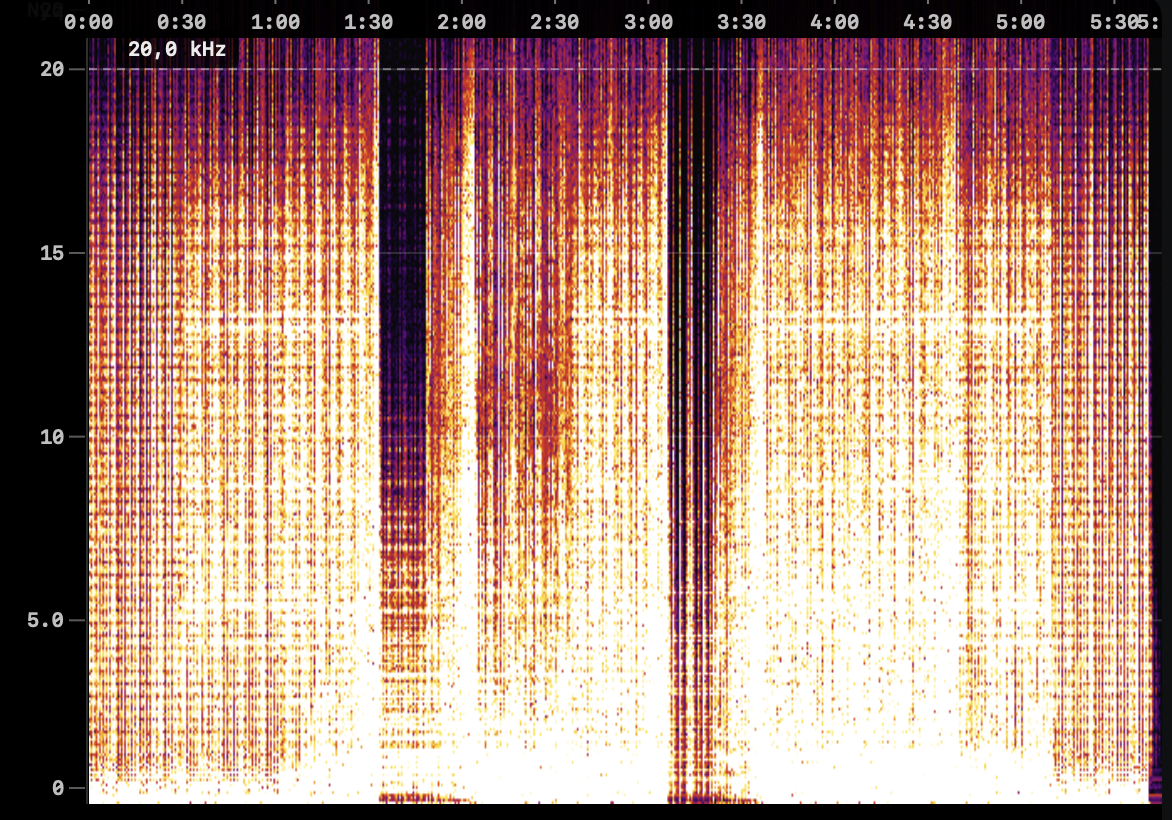
Quick Answer: Engine DJ reads file headers and trusts them — it has no mechanism to detect fake lossless audio. To verify files before exporting to USB for Denon SC6000 or other Engine OS hardware, scan your library with Spectro first. The scan returns a per-file verdict and takes under five minutes for a typical gig crate.
Engine DJ is the software backbone of the Denon DJ ecosystem — used to manage libraries, set cue points, analyze BPM and key, and export to USB drives for SC6000, SC6000M, and other Engine OS hardware. As the Denon ecosystem has grown in club installations, more DJs are preparing sets in Engine DJ and playing on Denon hardware in venues alongside or instead of Pioneer CDJs.
Like every DJ software platform, Engine DJ does not verify whether audio files are genuinely lossless. It reads the file format, runs analysis, and accepts the result. A fake WAV is treated identically to a genuine lossless WAV at every stage.
Why does this matter specifically for Engine DJ users?
Engine DJ users are disproportionately preparing for high-quality playback environments. The SC6000 and the broader Denon ecosystem are positioned as premium alternatives to Pioneer, often installed in venues that also invest in high-end sound systems. The combination of a premium playback setup and unverified library files creates a specific risk: the system has the resolution to reveal quality problems that a less capable setup would mask.
A fake WAV played through an SC6000 on a Funktion-One or L-Acoustics rig will sound worse than on a typical monitor setup. The missing high-frequency content and encoding artifacts that characterize fake lossless files are resolved by systems of this quality.
How do you add a quality check to your Engine DJ workflow?
The verification step belongs before you import files into Engine DJ — not after, when they are already analyzed and embedded in your collection.
Step 1 — Stage new downloads separately. Keep new purchases and pool downloads in a staging folder before adding them to Engine DJ.
Step 2 — Scan with Spectro. Drag the staging folder into Spectro. Each file receives a LOSSLESS, FAKE, or MEDIUM verdict. On Apple Silicon, 50 files processes in approximately 2–3 minutes.
Step 3 — Replace FAKE files. Any FAKE result should be replaced with a genuine lossless file before proceeding. If no replacement is available, a high-quality 320 kbps MP3 is preferable to a fake WAV — the format accurately represents the quality.
Step 4 — Import verified files into Engine DJ. Add clean files to your collection, run BPM and key analysis normally, and export to USB with confidence in the source material.
What format does Engine DJ work best with?
Engine OS hardware supports WAV, AIFF, FLAC, and MP3. For quality-conscious DJs, WAV or AIFF in 16-bit/44.1 kHz is the standard lossless format — but only if the files are genuinely lossless. A FLAC file that was transcoded from an MP3 is no better than the original MP3 in a lossless container.
Format selection matters less than source quality. A verified 16-bit WAV is better than an unverified 24-bit WAV, because the 24-bit file may be a fake regardless of its bit depth.
How do you audit an existing Engine DJ library?
Locate your Engine DJ music folder in Finder — typically your main music directory or an external drive. Drag the folder into Spectro for a full scan. Large libraries (3,000+ files) will take 20–30 minutes on Apple Silicon. Filter by FAKE when complete and work through the results over time.
Running this audit before a major run of gigs — a residency, a festival season — is a worthwhile investment. Catching a fake file in your library during a scan is substantially better than catching it through a sound system at a gig.
What does MEDIUM mean in the context of Engine DJ files?
MEDIUM indicates a spectral profile in the ambiguous range — around 19–20 kHz cutoff — where Spectro cannot reliably distinguish a very high-quality lossy encode from a genuine lossless file. For files from reputable stores, treat MEDIUM as likely clean. For files from uncertain sources (record pools, Telegram, trades), consider replacing before high-stakes gigs.
For the full workflow guide covering any DJ platform, see How to Check Audio Quality Before a Gig. For the detection method behind Spectro's verdicts, see How to Detect Fake Lossless Audio Files on Mac.
Related posts
Try Spectro free
100 files free. No account needed. Buy for $39 when you're ready.
Download Spectro — $39