
Spectro Team · April 30, 2026 · 5 min read
Spectro for Serato DJs: Verify Your Crates Before the Gig
Serato DJ Pro doesn't check whether your WAV files are genuinely lossless. Here's how to add an audio quality check to your Serato workflow before you play.
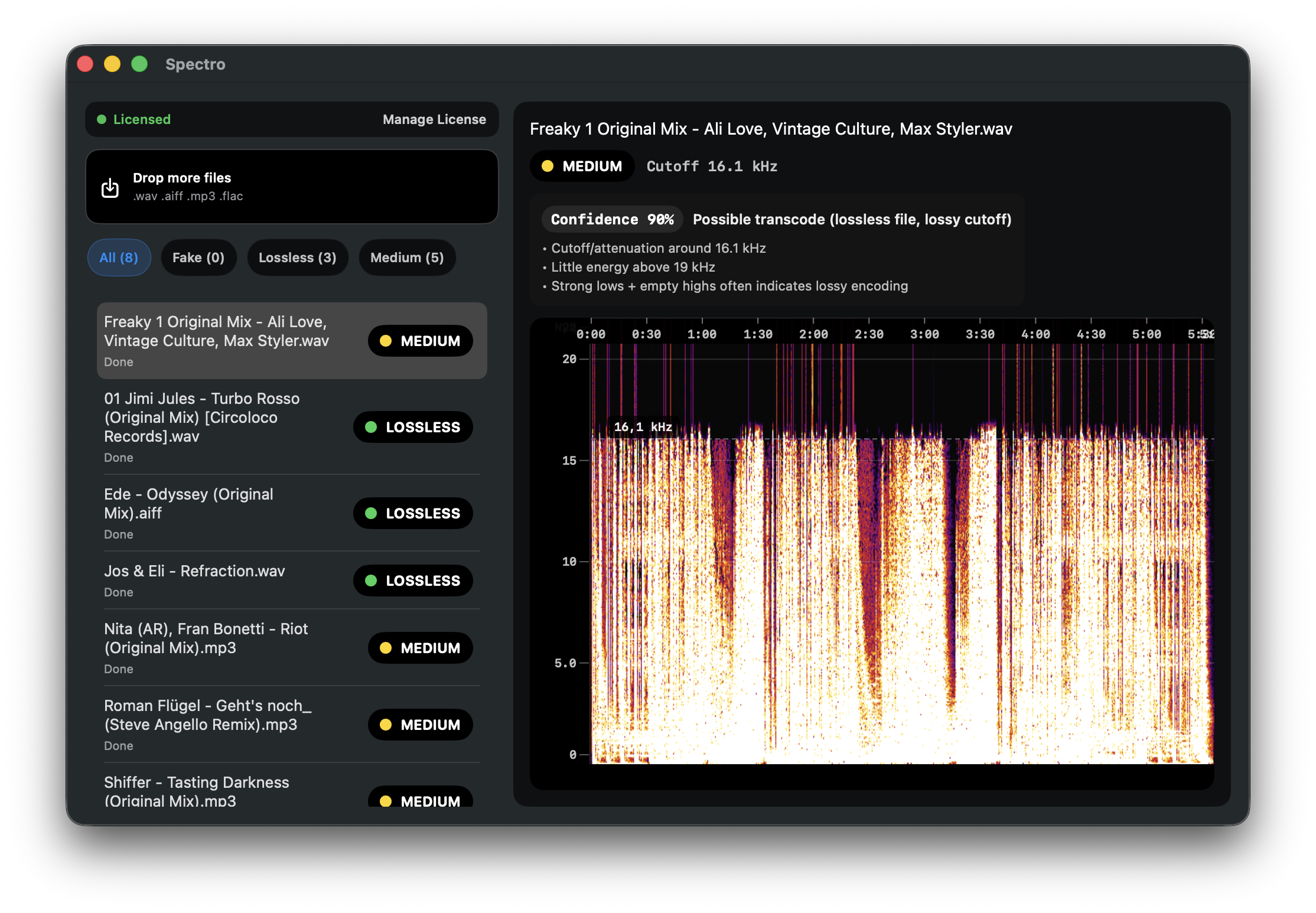
Quick Answer: Serato DJ Pro reads your file headers and trusts them — it has no way to detect fake lossless files. To verify your crates before a gig, scan your downloads with Spectro before importing into Serato. The scan takes under five minutes for a full set and flags any file that is an MP3 repackaged as WAV or FLAC.
Serato DJ Pro is one of the most widely used DJ platforms in the world. It handles audio analysis, waveform rendering, key detection, BPM analysis, and crate management with precision. What it does not do — and cannot do — is verify whether the WAV or AIFF file you just imported is genuinely lossless.
This is not a shortcoming specific to Serato. No DJ software checks for fake lossless files. They read the file header, confirm the format, and trust it. If a file was re-encoded from MP3 to WAV at some point in the distribution chain, Serato will read it as WAV, analyze it normally, and load it to a deck without any warning.
Why can't Serato detect fake lossless files?
DJ software is built to play audio reliably and fast — not to audit its provenance. Detecting a fake lossless file requires analyzing the frequency spectrum of the audio and comparing it against the expected profile for the declared format. That process takes time and processing power that would slow down every file load in your library.
More practically: Serato has no reason to distrust a file's format declaration. The file says WAV. It plays as WAV. The waveform renders. The analysis runs. From Serato's perspective, the file is fine.
The problem only becomes apparent when the audio hits a sound system that resolves the frequency range where the original lossy encoding discarded data — typically above 15–16 kHz on a 128 kbps source, 19 kHz on a 192 kbps source.
Where do fake lossless files come from in a Serato library?
The most common sources are record pools, promo packs, and file trades with other DJs. Record pools in particular receive automated uploads from labels and distributors — quality control is inconsistent, and a file mislabeled as WAV at the source will arrive in your library looking clean.
Files downloaded from Telegram groups or free download platforms are higher risk. Files purchased directly from Beatport or Bandcamp are lower risk but not zero risk. For the full breakdown by source, see Is Your Beatport Download Actually Lossless?
The practical reality: if your Serato library has been built over several years from multiple sources, it almost certainly contains some fake lossless files. The question is which ones.
How do you add a quality check to your Serato workflow?
The check happens before you import — not inside Serato. Here is the recommended workflow:
Step 1 — Download your tracks as usual. Keep new downloads in a staging folder before adding them to Serato.
Step 2 — Drag the staging folder into Spectro. Spectro will analyze each file and return a LOSSLESS, FAKE, or MEDIUM verdict. On Apple Silicon, 50 files takes approximately 2–3 minutes.
Step 3 — Handle FAKE results. If Spectro flags a file as FAKE, replace it with a genuine lossless download if possible. If no replacement is available, a high-quality 320 kbps MP3 is a more honest representation of the file than a fake WAV.
Step 4 — Import clean files into Serato. Once the scan is complete, add the verified files to your Serato library normally. Your crates contain what they claim to contain.
What should you do with MEDIUM results?
MEDIUM means the file's spectral profile falls in an ambiguous range — typically a cutoff around 19–20 kHz — where Spectro cannot reliably distinguish a 256 kbps CBR encode from a high-quality VBR encode. The file may be genuine lossless or high-quality lossy.
For most gigs, MEDIUM files are safe to use. The ambiguous range represents either a genuinely lossless file or a very high-quality lossy source. If the file came from a trusted source (Beatport WAV, direct label promo), treat it as clean. If it came from a less reliable source, consider replacing it.
How do you audit an existing Serato library?
If you want to check files already in Serato rather than just new downloads, locate your Serato music folder in Finder and drag it into Spectro. The app will scan everything in the folder tree.
On Apple Silicon, scanning a library of 5,000 files takes approximately 20–30 minutes. You can run it overnight and filter FAKE results the next morning. This is useful as a one-time audit before a festival run or residency.
For a complete guide to the detection method Spectro uses, see How to Detect Fake Lossless Audio Files on Mac. For the pre-gig workflow checklist, see How to Check Audio Quality Before a Gig.
Related posts
Try Spectro free
100 files free. No account needed. Buy for $39 when you're ready.
Download Spectro — $39