
Spectro Team · April 29, 2026 · 7 min read
Rekordbox Audio Checker Workflow: From Download to USB Export
A complete step-by-step workflow for Rekordbox DJs to verify audio quality before exporting to USB — from purchase to scan to CDJ-ready set.
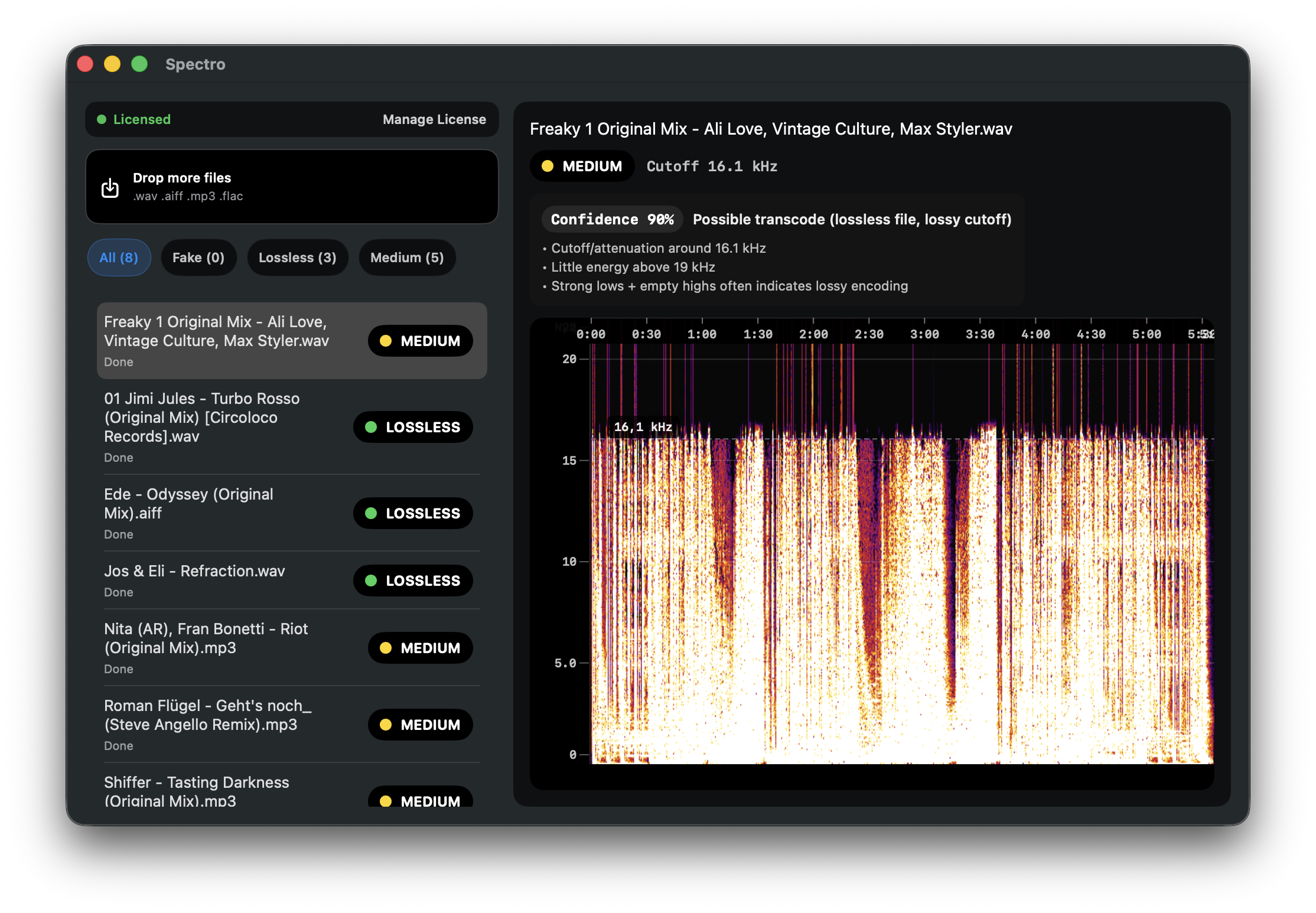
You downloaded your tracks, analyzed them in Rekordbox, set the cue points, tuned the key — and now your USB is ready. What you probably didn't do is check whether any of those WAV or AIFF files are actually what they claim to be.
Rekordbox doesn't. It reads the file header, confirms the format, and trusts it. If a track was re-encoded from MP3 to WAV at some point — by a distributor, a rip site, or even a well-meaning label — Rekordbox has no way to know. The file plays, looks normal in the waveform view, and ends up on the USB.
This guide covers a practical audio quality check workflow designed specifically for Rekordbox users: where to insert the check, what to look for, and how to handle results before you export to USB.
Why Rekordbox can't catch fake lossless files
Rekordbox performs a metadata and header read when it analyzes tracks. It determines BPM, musical key, waveform shape, and cue point positions. All of this is based on the audio data it receives — but it makes no judgment about whether that data represents genuine lossless quality.
To detect a fake lossless file, you need to analyze the frequency content of the audio itself. Genuine lossless files have energy distributed across the full audible spectrum up to 22 kHz (the Nyquist limit for 44.1 kHz audio). Files that were originally lossy — even if later re-saved as WAV or AIFF — carry a signature: a hard cutoff at the point where the original codec discarded information, usually between 16 and 20 kHz for typical MP3 encoding.
This spectral cutoff is invisible in Rekordbox's waveform view. It doesn't affect BPM detection, key analysis, or any metadata Rekordbox reads. It only shows up in a spectrogram — or in how the track sounds on a system capable of resolving it.
For a deeper explanation of how to read spectrograms and why fake lossless matters, see How to Detect Fake Lossless Audio Files on Mac.
Where to insert the quality check in your workflow
The best place is between adding tracks to your library and building the playlist you'll export to USB. Not at the end, when you're rushing before a gig.
A practical Rekordbox workflow with an audio quality gate looks like this:
- Purchase and download tracks from your usual sources (Beatport, Bandcamp, Traxsource, etc.)
- Scan new tracks with Spectro before importing into Rekordbox
- Import clean tracks into Rekordbox and analyze for BPM/key
- Build your set playlist in Rekordbox from verified tracks
- Export to USB
The scan happens in step 2, before you invest time setting cue points on a file you might need to replace anyway. If you catch a FAKE result before analysis, you skip the rework.
If you already have an existing library and haven't audited it yet, the process is the same — just applied to your full collection rather than new additions.
Step-by-step: scanning with Spectro before USB export
Step 1: Gather the tracks you plan to export
In Rekordbox, create a playlist with the tracks for your next set. Export or locate the source files — on macOS, Rekordbox stores them in the original location where you added them to the library. You can also just use the folder you download new music into.
Step 2: Drop the folder or files into Spectro
Drag your music folder directly into Spectro's main window. Spectro supports WAV, AIFF, FLAC, and MP3. The batch scan starts immediately — most libraries process at several hundred files per minute.
Step 3: Read the verdicts
Each file gets one of three verdicts:
- LOSSLESS — frequency content extends naturally to the full spectrum. The file is what it claims to be. Safe to export.
- FAKE — hard frequency cutoff detected. The file was converted from a lossy source before being packaged as lossless. Flagged for replacement.
- MEDIUM — high-bitrate lossy source or edge case. Usually 320kbps MP3 content in a WAV container. Audibly acceptable in most contexts but not technically lossless.
Step 4: Filter for FAKE and decide
Use Spectro's verdict filter to isolate FAKE files. For each flagged track, you have two good options: find a genuine lossless version from the original source, or replace the fake WAV with an honest high-bitrate MP3 so your library is at least correctly labeled.
For guidance on how to source genuine lossless versions and which stores are most reliable, see Is Your Beatport Download Actually Lossless?
Step 5: Export to Rekordbox and then to USB
Once your cleaned tracks are verified, continue your normal Rekordbox workflow: update metadata, set cue points, build playlists, and export to USB as you normally would.
What to do with MEDIUM results
MEDIUM results aren't necessarily problems. A high-quality 320kbps MP3 plays well on any system and most listeners — including experienced DJs — can't reliably distinguish it from lossless in a club context.
The practical rule: if you're playing on a high-resolution system (high-end club rigs, listening sessions, recordings), prioritize replacing MEDIUM results. If you're playing on a typical club sound system at performance volumes, MEDIUM tracks are acceptable as long as you know that's what they are.
The key is to know your library, not to replace every file by default. Spectro gives you that visibility; what you do with it is a judgment call based on context.
Building this into your ongoing workflow
The scan overhead for new music is minimal. Dropping a folder of 10-20 new tracks into Spectro takes under 30 seconds and tells you immediately which ones are worth the time you're about to spend on them in Rekordbox.
The bigger value is for your existing library. Run Spectro once on your full collection, note everything FAKE, and replace files gradually as you repurchase or find clean versions. For most DJs with libraries in the hundreds to low thousands, this is a few weeks of normal buying activity — and if you want a structured way to work through backlog without drowning in flagged files week one, follow the practical DJ library audit methodology.
After that one-time audit, the ongoing process is simple: scan new additions before you import them, and your library stays clean by default.
Scan your Rekordbox tracks free with Spectro — 100 files, no account needed
FAQ
Does Spectro need to be connected to Rekordbox to work? No. Spectro reads audio files directly — it doesn't connect to Rekordbox, modify its database, or require any integration. You scan your files on disk, and your Rekordbox library is unaffected.
Can I scan a Rekordbox playlist directly? Spectro scans folders and files on disk. The easiest way to scan a playlist is to locate the source files in Finder (right-click a track in Rekordbox and select "Show in Finder") and add the containing folder to Spectro.
What if Spectro flags a file I know is genuine lossless? False positives can occur with certain mastering styles, very old recordings, or vinyl rips with natural high-frequency roll-off. Spectro shows you a confidence score alongside the verdict — if the score is moderate and the track has a known lossless provenance, you can treat it as clean. For a detailed explanation of false positive cases, see Why Your Lossless File Is Being Flagged as Fake.
Does Spectro work with FLAC files from Beatport? Yes. Spectro supports WAV, AIFF, FLAC, and MP3. FLAC files from Beatport are analyzed the same way as WAV files — spectral content is what matters, not the container format.
Related posts
Try Spectro free
100 files free. No account needed. Buy for $39 when you're ready.
Download Spectro — $39