
Spectro Team · April 20, 2026 · 5 min read
How to Check Audio Quality Before a Gig
Bad audio quality in your DJ set is avoidable. Here's a practical checklist for checking your files before you play - and how to catch fake lossless tracks before they cause problems.
You've spent hours preparing your set. The tracklist is locked, the transitions are rehearsed, the USB is ready. But have you actually checked the audio quality of the files you're about to play?
Most DJs haven't. It's not laziness - it's that until recently, checking audio quality properly required technical tools and manual inspection that most workflows don't have time for. But playing a fake lossless file through a club sound system at high volume is one of those problems that's very hard to explain to a promoter after the fact.
This is a practical guide for checking your audio before a gig, from quick sanity checks to a full library audit.
Why audio quality problems happen
The most common issue isn't a corrupt file or a badly encoded export. It's fake lossless - a file that carries a WAV, AIFF, or FLAC extension but was converted from a compressed source like MP3 or AAC at some point in its history.
If you're not sure where fake lossless files come from - including whether your store downloads are trustworthy - see Is Your Beatport Download Actually Lossless?.
These files look normal in every DJ software. Rekordbox, Serato, and Traktor read them without complaint. The file size looks right. The waveform looks right. You won't know there's a problem until you hear it - or worse, until the sound engineer hears it.
The second most common issue is genuine encoding errors: clipping, incorrect sample rates, or bitrate mismatches that cause playback problems on CDJs or club mixers.
The quick check (5 minutes before loading your USB)
This won't catch everything but will catch obvious problems:
1. Check file formats in your DJ software. Sort your library by file type and bitrate. Any MP3 below 256kbps in a set intended for a club is a problem. WAV and AIFF files should be 16-bit/44.1kHz minimum - most club tracks are 24-bit.
2. Listen to the loudest part of your most important tracks. Not the whole track - just the drop or the section with the most high-frequency content. Harsh, grainy highs or a "plasticky" quality in the transients are often the first sign of low-quality source material.
3. Check for clipping. Most DJ software shows a red indicator on the waveform for clipped audio. A clipped file will distort on a club system regardless of how carefully you mix.
The proper check (Spectro + 10 minutes)
For a real quality check, you need to look at the frequency content of your files - specifically whether the high frequencies are intact.
For a full explanation of how spectral analysis works and what to look for manually, see How to Detect Fake Lossless Audio Files on Mac.
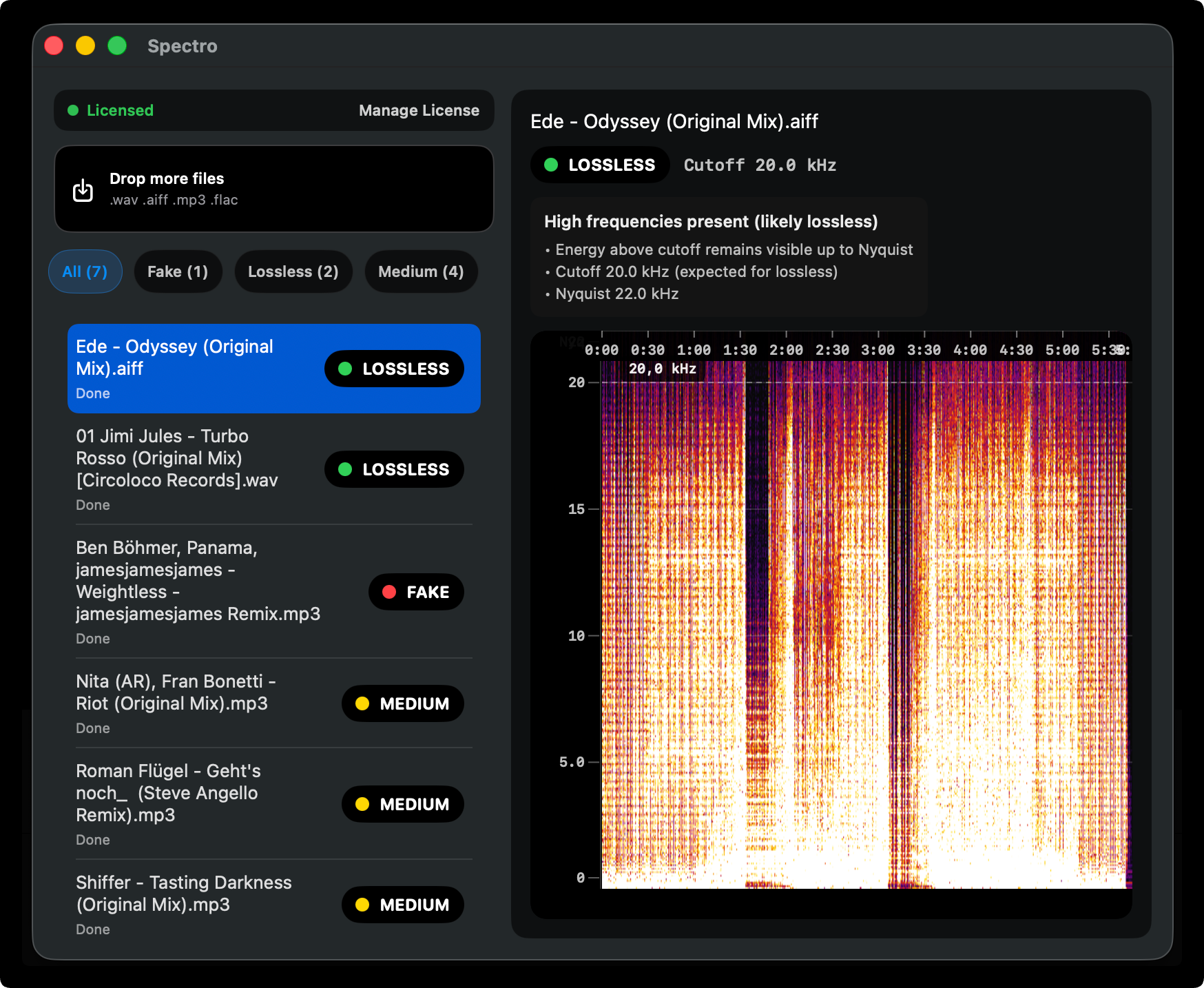
Spectro automates this. Drag your set playlist or folder into Spectro and it analyzes every file, showing a spectrogram and returning a verdict for each:
- LOSSLESS - frequency content extends naturally to the Nyquist limit. The file is what it claims to be.
- FAKE - hard frequency cutoff detected, consistent with MP3 or AAC encoding. The file is mislabeled.
- MEDIUM - high-bitrate lossy source or ambiguous case. Usually 320kbps MP3. Acceptable for most contexts but not technically lossless.
A typical pre-gig check on a 20-track set takes under two minutes. You can filter to show only FAKE results and decide what to replace before you leave the house.
What to do with FAKE files
If Spectro flags a file as FAKE, you have three options:
Replace it. If the track is available from a lossless source (Beatport, Bandcamp, direct from label), buy the lossless version. This is the right answer for tracks you play regularly.
Keep the MP3. An honest 320kbps MP3 labeled as MP3 is better than a fake WAV. If you don't have a lossless source, keep the file but change the format back to MP3 so at least your library is honest. Some DJ software allows this through metadata editing.
Skip it for this gig. If a track is FAKE and you can't replace it before the set, consider whether it's essential. For a residency at a club with a high-end system, a fake lossless track in a key moment is a risk. For a warm-up set on a mid-range system, 320kbps is probably fine.
Pre-gig audio quality checklist
Use this before every gig where audio quality matters:
- All tracks in the set are WAV, AIFF, or FLAC (or high-bitrate MP3 if intentional)
- No MP3s below 256kbps in the main set
- No clipping flags in DJ software
- Spectro scan complete - FAKE files identified and addressed
- USB formatted correctly for your CDJ model (FAT32 or exFAT depending on model)
- Backup copy of the set on a second USB or cloud storage
Building a clean library over time
The pre-gig check is a safety net, not a strategy. The real solution is a clean library from the start.
A practical approach: run Spectro on your full library once, flag everything FAKE, and replace files gradually as you buy new music. For most DJs this takes a few weeks of normal buying activity - every time you purchase a track that was previously FAKE in your library, you replace the old file and your library gets cleaner over time.
After the initial audit, the ongoing maintenance is simple: run Spectro on new music when you add it to the library. It takes seconds per file and prevents problems before they accumulate.
Download Spectro and run a pre-gig check free on your first 25 files ->
Related posts
Try Spectro free
25 files free. No account needed. Buy for $39 when you're ready.
Download Spectro — $39