
Spectro Team · April 30, 2026 · 4 min read
Spectro for Traktor Users: Clean Your Library Before Import
Traktor Pro doesn't verify whether your WAV and AIFF files are genuinely lossless. Here's how to check your library before importing into Traktor and avoid quality problems in your sets.
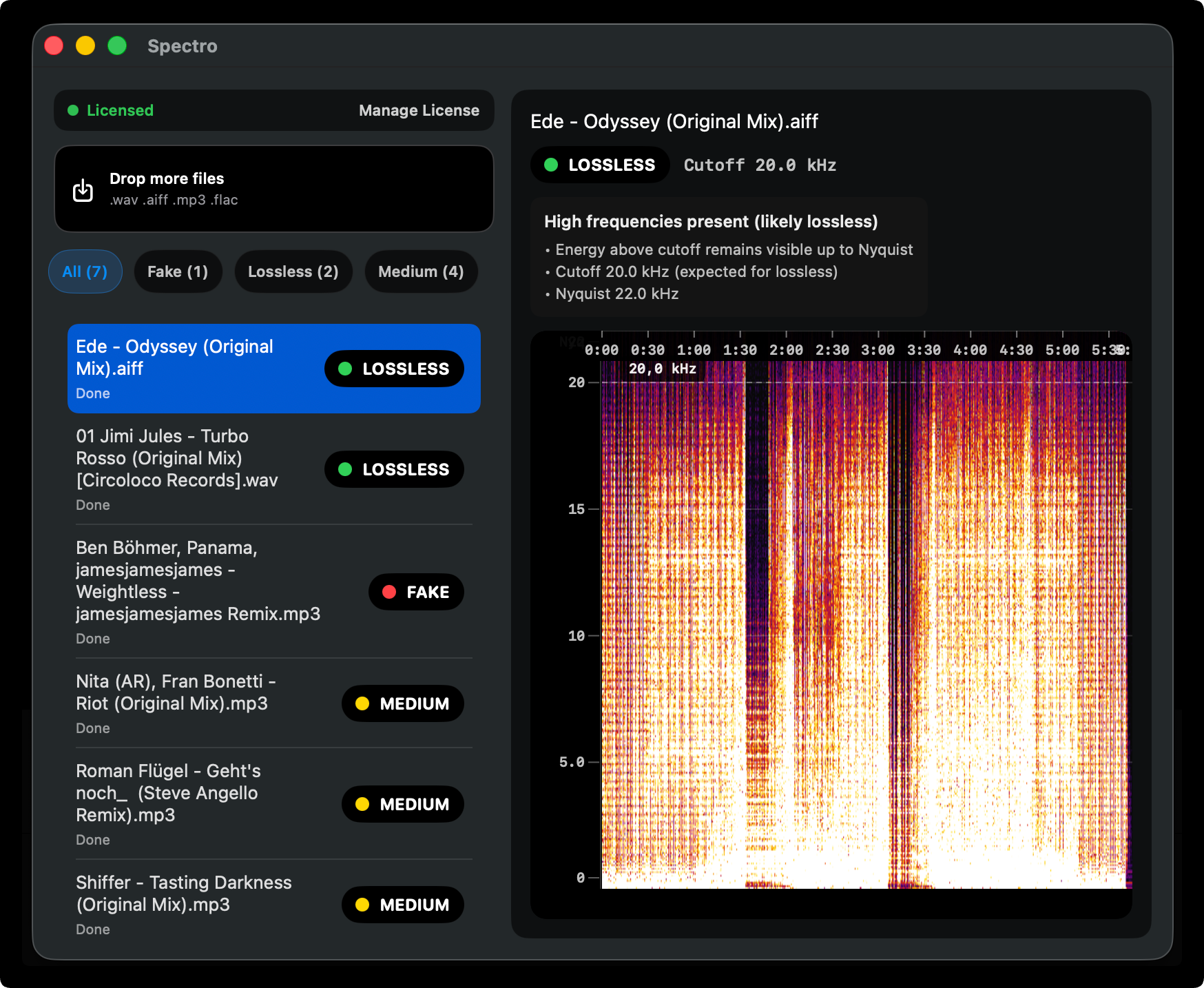
Quick Answer: Traktor Pro imports files based on format declaration — it cannot detect fake lossless audio. To protect your sets, scan your downloads with Spectro before importing into the Traktor library. A batch scan of 50–100 tracks takes under five minutes and flags any WAV or AIFF file that was re-encoded from a lossy source.
Traktor Pro is the DJ software of choice for a significant portion of club DJs, particularly those working with hardware controllers and the Native Instruments ecosystem. Like every DJ platform, Traktor reads file metadata and trusts it. A WAV file is read as WAV. An AIFF is read as AIFF. The quality of the audio inside is never checked.
This matters more than most Traktor users realize. If a file was converted from MP3 to WAV at any point — by a record pool, a promo distributor, or a previous owner of the file — Traktor will import it, analyze it for BPM and key, and present it in your library as a full-quality WAV. The first indication that something is wrong is often the sound at a gig.
Why does Traktor trust file format declarations?
DJ software is optimized for performance, not provenance. Verifying whether a WAV file is genuinely lossless requires analyzing the frequency spectrum — a process that adds time to every file load and every library import. That trade-off is not worth making inside DJ software, where speed and reliability are paramount.
The verification step belongs before the file enters your library. Once a fake lossless file is in Traktor, analyzed, and embedded in your workflow, it is much harder to find and replace than if you had caught it at the staging stage.
What types of fake lossless files appear in Traktor libraries?
The most common cases are:
Record pool downloads. Automated ingest pipelines at record pools sometimes receive mislabeled files from distributors. The pool forwards them labeled as WAV. You download and import.
Promo packs. Label promo packs sent via Dropbox or WeTransfer are not quality-controlled. A WAV in a promo pack is only as good as what the label uploaded.
File trades and Telegram. Files shared peer-to-peer carry no quality guarantees. Re-encoded files propagate through these channels constantly.
Legacy library files. If your Traktor library includes tracks downloaded years ago, some of those files were encoded at a time when quality standards were lower and checking tools were unavailable.
How do you verify files before importing into Traktor?
The workflow is straightforward:
Step 1 — Keep new downloads in a staging folder. Before adding anything to Traktor, store new tracks in a dedicated folder outside your main library.
Step 2 — Scan the staging folder with Spectro. Drag the folder into Spectro. Each file receives a LOSSLESS, FAKE, or MEDIUM verdict. The scan runs in the background — you can continue working while it processes.
Step 3 — Replace FAKE files before import. Any file flagged as FAKE should be replaced with a genuine lossless download from the original store. If a replacement is not available, a high-quality MP3 is preferable to a fake WAV — at least the format accurately represents the quality.
Step 4 — Import clean files into Traktor. Add the verified files to your Traktor library. BPM analysis, key detection, and cue points will be based on files you know are what they claim to be.
How do you audit an existing Traktor library?
Traktor stores its music in folders you define when setting up the software. Locate your music root folder in Finder and drag it into Spectro for a full library audit.
For large libraries (2,000+ tracks), the scan will take longer — typically 15–25 minutes on Apple Silicon for a 3,000-track library. Run it when you are not actively preparing a set. Filter by FAKE when it completes, note which tracks need replacing, and work through them over time.
It is worth running this audit at least once before any significant run of gigs — a residency, a festival season, a tour.
What does MEDIUM mean for Traktor files?
MEDIUM indicates that the file's spectral cutoff falls in the range where Spectro cannot definitively distinguish a genuine lossless file from a very high-quality lossy source (256 kbps CBR or VBR-0). For Traktor users, MEDIUM files are generally safe to use. If the file came from a reliable source, treat it as clean. If provenance is uncertain, consider replacing it before a high-stakes gig.
For the full technical explanation of how fake lossless detection works, see How to Detect Fake Lossless Audio Files on Mac. For the Rekordbox equivalent of this workflow, see Rekordbox Audio Checker Workflow.
Related posts
Try Spectro free
100 files free. No account needed. Buy for $39 when you're ready.
Download Spectro — $39