
Spectro Team · April 29, 2026 · 8 min read
Fakin' The Funk Alternative for Mac: What to Use in 2026
Fakin' The Funk is the standard for fake lossless detection on Windows — but Mac users need a native alternative. Here's what to use instead.
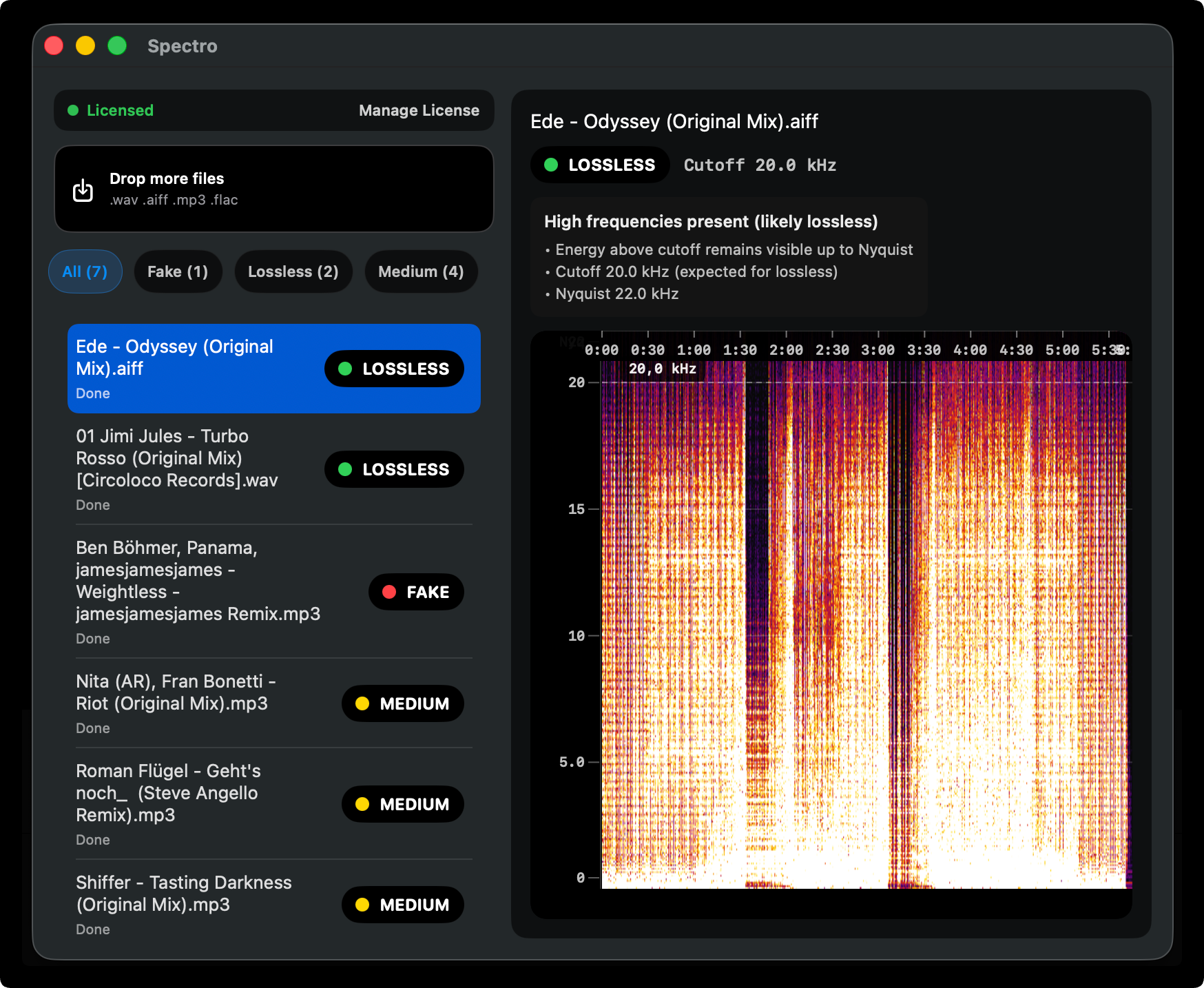
Quick Answer: Fakin' The Funk is a Windows-first tool with no native macOS version. The best Mac alternative is Spectro — a native Apple Silicon app that returns automatic LOSSLESS, FAKE, or MEDIUM verdicts per file with batch scanning and Finder integration. Free trial for 100 files at getspectro.app.
If you have ever searched for Fakin' The Funk on Mac, you have probably already found the same answer: there is no official native build. Fakin' The Funk (often shortened to FtF) is one of the most respected tools in the DJ world for spotting transcoded audio — but it lives in the Windows ecosystem. For DJs and producers on macOS who want the same kind of batch verdict workflow, the gap is real. This article explains what FtF does, why the Mac situation is different, and what to use instead in 2026.
What is Fakin' The Funk?
Fakin' The Funk is a Windows application designed to detect fake lossless audio: files sold or labeled as WAV, FLAC, or AIFF that were actually created from a lossy source such as MP3. It analyzes the spectral content of each file, looks for the hard frequency cutoffs that lossy encoders leave behind, and assigns a verdict so you do not have to read every spectrogram by hand.
In practice, FtF is used for batch library audits. You point it at a folder, it processes many files in sequence, and you get a clear signal about which tracks are suspicious. That workflow made it a reference point in online DJ forums for years — especially among Windows users who buy large catalogs from download stores and want a second line of defense before a gig.
The tool fits a specific mental model: trust nothing at face value. A store page can say “lossless,” a file can show a .wav extension, and your DJ software can still play the track without complaint — but none of that proves the audio was ever lossless end-to-end. FtF exists to close that gap with objective spectral evidence, at scale.
The limitation for this guide is simple: FtF is not a macOS product. There is no supported native app you can install from the Mac App Store or run as a first-class Apple Silicon binary. Mac users who hear FtF recommended in a Reddit thread or Facebook group are often left wondering what the equivalent is on their machine.
Why do Mac users need an alternative?
Most professional DJ software — Rekordbox, Serato, Traktor — runs on both platforms, but audio utility ecosystems split. Tools that grew up on Windows sometimes never get a Mac port, or they only run through emulation, which is a poor fit for scanning hundreds of large WAV files before a deadline.
Without a native FtF equivalent, Mac users historically fell back on:
- Manual spectrogram viewers (e.g. Spek, Sonic Visualiser): powerful, but slow when you need a verdict on every file in a crate.
- Web-based upload checkers: convenient for one-off files, but a non-starter for unreleased promos or large folders where you do not want files leaving your machine.
- DAW spectrum analyzers: great for production, not optimized for triaging a download folder in five minutes.
For USB prep on a MacBook the missing piece is the same thing FtF provides on Windows: fast, repeatable, batch-oriented fake-lossless detection with an explicit verdict — without treating every track like a forensic science project.
Another angle is time on the calendar. The night before a gig is the wrong moment to discover you should have budgeted two hours for manual checks. A Windows user with FtF installed can clear a folder quickly; a Mac user without a native equivalent either skips the check (risky) or burns sleep (expensive). That asymmetry is why a dedicated Mac tool matters.
What should Mac users use instead?
The closest match for that workflow on macOS today is Spectro.
Spectro is a native macOS app (Apple Silicon and Intel) built specifically around fake lossless detection for DJ libraries. Like FtF, it is built on the idea that you should not trust the file extension alone: the spectrum tells the truth. You drag in a folder of WAV, AIFF, FLAC, or MP3 files; Spectro analyzes each one; and you get a LOSSLESS, FAKE, or MEDIUM verdict per file, plus optional Finder tags so you can see problems at a glance in the same file browser you already use for Rekordbox prep.
Everything runs offline on your Mac — no upload queue, no account required for the trial. That matters when your folder contains promos, edits, or anything you do not want on a third-party server.
Spectro is also tuned for how DJs actually organize music: scan a download folder, filter by FAKE or MEDIUM, tag or replace problem files, then move on to analysis and USB export in Rekordbox or Serato. The goal is not to replace your ears — it is to remove silent landmines from the library before they hit a club PA.
If you are new to the underlying idea of transcoded “lossless” files, start with What is fake lossless audio? before diving into tool comparisons.
How does Spectro compare to Fakin' The Funk?
Both tools target the same core problem: lossy audio hiding inside a lossless container. They differ mainly by platform and by how tightly each integrates into a modern Mac workflow.
| Feature | Spectro (Mac) | Fakin' The Funk |
|---|---|---|
| Native macOS app | Yes — runs natively on macOS | Windows-first; no native Mac version |
| Automatic verdict (LOSSLESS / FAKE / MEDIUM) | Yes | Yes (FtF verdict system) |
| Batch folder scanning | Yes | Yes |
| Apple Silicon native | Yes | No native Mac build |
| Finder tag integration | Yes | No |
| Offline — files never uploaded | Yes | Yes |
| Price | $39 one-time | €18.49 one-time |
| Free trial | 100 tracks | Limited |
FtF remains a strong choice on Windows if you already own it and your workflow lives on that OS. On Mac, Spectro is the purpose-built option: same class of problem, native performance, and hooks into Finder that Windows-centric tools do not provide on macOS.
What detection method does Spectro use?
Spectro uses spectral frequency analysis to look for the fingerprint of lossy encoding: a hard cutoff in energy above a certain frequency (often in the 16–20 kHz range, depending on the original MP3 bitrate), instead of the gradual rolloff you expect from a genuine high-resolution or CD-quality lossless master.
The approach is grounded in peer-reviewed work on transcoding detection (D'Alessandro & Shi, ACM MM&Sec 2009), which reported 99% accuracy across a large test set of songs — the same research lineage Spectro cites for its methodology. MEDIUM exists for the ambiguous band where very high-bitrate lossy encodes can resemble some genuine masterings; Spectro flags those explicitly instead of forcing a wrong binary guess.
For a full walkthrough of how to read cutoffs yourself — and when a “suspicious” spectrum might still be a false positive — see How to detect fake lossless audio files on Mac.
If you want the short version: a FAKE result means the spectrum looks like lossy audio was wrapped in a lossless container; LOSSLESS means the high-frequency behavior matches a genuine lossless source; MEDIUM means the file sits in a gray zone where guessing would be irresponsible, so Spectro tells you explicitly instead of hiding the uncertainty.
Is Spectro the right tool for you?
Yes, if: you work on macOS, you buy or collect lossless files from multiple sources, and you want automatic batch verdicts without manually opening every file in a spectrogram viewer before your next export to USB.
No replacement needed if: you are on Windows and already use Fakin' The Funk successfully — FtF is established there, and this article is not arguing you should switch platforms.
Also consider: if you only need a quick browser check on a single file, a web tool may be enough; for library-scale privacy and speed on Mac, a native app wins. For how Spectro compares to one popular web checker, read Spectro vs. Fabl.
Finally, remember that no automated tool replaces provenance. If you know a file came straight from a trusted mastering engineer or a label’s official lossless delivery, you may still see edge cases (mastering filters, vinyl captures, unusual sample rates). The point of a FtF-style workflow — whether on Windows or Mac — is to catch the boring, common failure mode: MP3 → “WAV” sneaking into a set list because nobody looked.
More on Mac workflows: How to detect fake lossless audio files on Mac · Best Spek alternatives for Mac in 2026 · Spectro vs. Fabl
Related posts
Try Spectro free
100 files free. No account needed. Buy for $39 when you're ready.
Download Spectro — $39